
Training / Stay plan / Lesson 3 of 14
Bookings
The heart of Resortiqo. Staff spend most of their day on these two screens: the bookings list and one booking's page.
- Modules
- M1 Bookings
- Who uses it
- Front desk, owner
- Plan
- Stay plan
- Where
- Front desk › Bookings
What it is for
A booking records that a guest has a room for certain nights at an agreed price. From that moment the room cannot be sold to anyone else for those nights. The booking then carries everything about the stay: the price, what was paid, the invoice and its history.
The bookings list
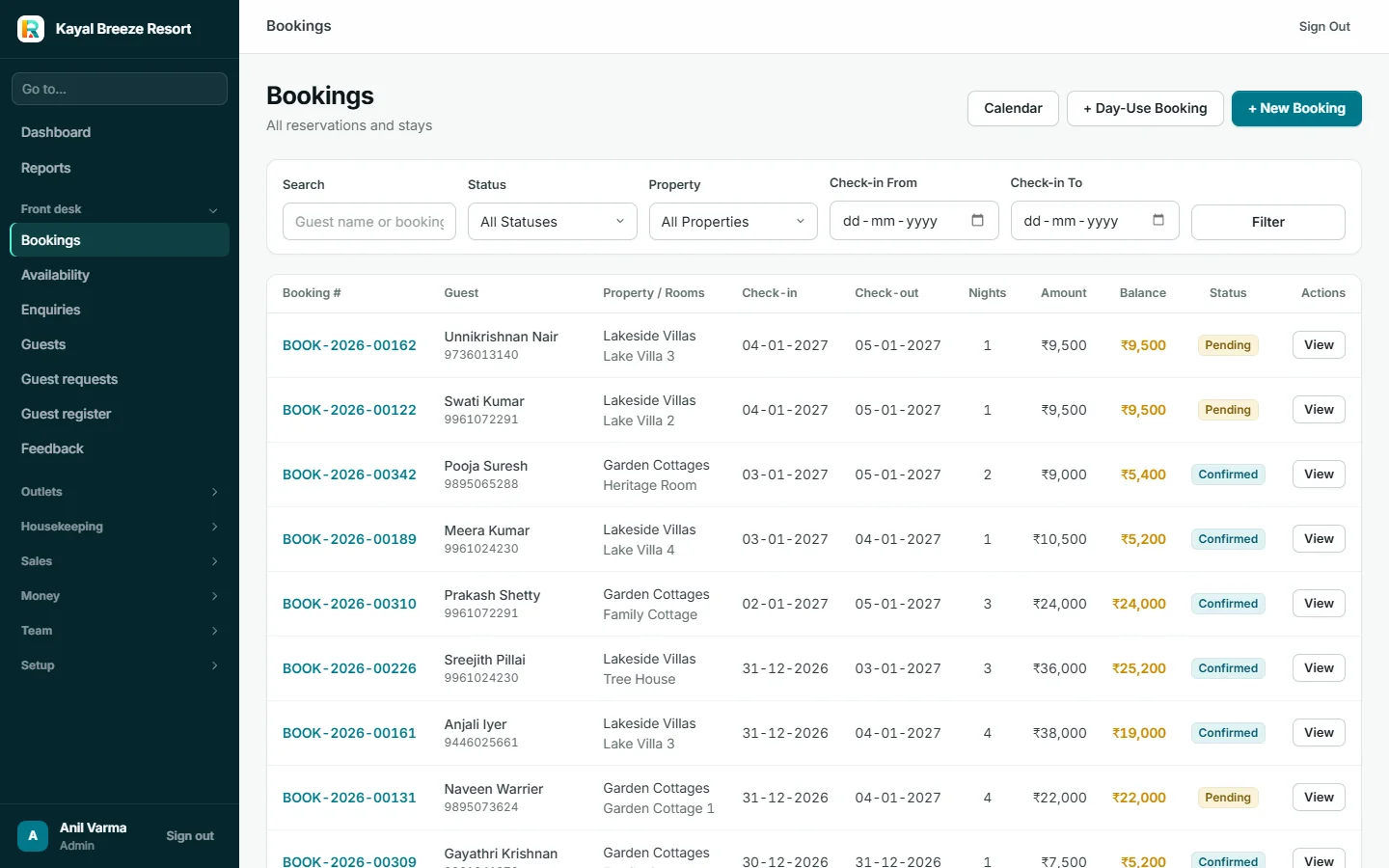
Three buttons at the top right start everything: Calendar, + Day-Use Booking and + New Booking.
Task 1: make a booking

- Choose the booking type Single Room, Multi-Room (several rooms for one party), or Full Property (the whole place, for example a family taking every cottage).
- Pick the property and dates Then the meal plan, and press Check Availability. Only rooms that are free for those nights are offered.
- Find or add the guest Type a name or phone number in Search Guest. A returning guest appears at once. For a new one, press + Add New Guest without leaving the page.
- Say who is coming Adults, children and their ages, and extra beds. These change the price.
- Check the money Standard Tariff is the price Resortiqo worked out from the rates. If a different price was agreed on the phone, type it in Negotiated Amount, or give a Discount. Total Amount is the final figure.
- Record the advance If the guest has paid something, enter it and choose where it was received: Cash Box, a bank account, the card machine or UPI.
- Choose the booking source Walk-in, Phone, Website, WhatsApp, Booking.com and so on. This feeds the report that shows where business comes from.
- Press Create Booking The booking gets a number such as BOOK-2026-00332.
The owner can also mark a stay as Complimentary (a free stay) or Owner Stay (the owner's own family). These hold the room without counting as income.
Task 2: move a booking through its life
A booking is always in one of five states:
| Status | Means | Next step |
|---|---|---|
| Pending | Requested but not yet confirmed, for example from the website | Confirm, or cancel |
| Confirmed | The room is promised to the guest | Check in on arrival |
| Checked in | The guest is in the resort | Check out on departure |
| Checked out | The stay is finished | Nothing. It stays as history |
| Cancelled | The stay will not happen. The room is free again | Refund the advance if agreed |
The buttons for these are in the Actions box on the right of the booking's page.

Task 3: change a stay
- Extend Stay adds nights (or hours for a late check-out) if the room is free, and adds the extra charge.
- Shift Room moves the guest to another free room, for example when an air conditioner fails.
- Cancel Booking asks for a reason and frees the room.
Every change is written into the booking's history with the time and the staff member's name.
Day-use bookings
+ Day-Use Booking is for a guest who uses a room for some hours and does not stay the night, such as a family resting between a flight and a wedding. It has a start and end time on the same day.
What it connects to
- Rates set the price
- The calendar shows the room taken
- The guest's profile gains a stay
- Payments are recorded on it
- The invoice is made from it
On Stay, a booking has one bill. Group names, rooming lists (who sleeps in which room) and splitting the bill between a company and a guest come with the Resort plan.
The red Delete booking button removes a booking from the lists. It is for mistakes, such as a booking typed twice. For a guest who is not coming, staff should use Cancel Booking, which keeps the record.