
Training / Advertiqo console / Lesson 2 of 4
Creating a resort
Signing up a new customer takes one form. It creates the resort, gives it sensible starting settings, and makes its first Owner.
- Modules
- M60 Advertiqo console
- Who uses it
- Advertiqo staff only
- Where
- /console › Create a resort
Before you start
Have these ready:
- The resort's name as it should appear on bills
- Its web address:
resortname.resortiqo.com, or its own domain if it bought that add-on - Its logo (JPG, PNG or WebP, up to 5 MB) and two brand colours
- The Owner's name and email address
The form
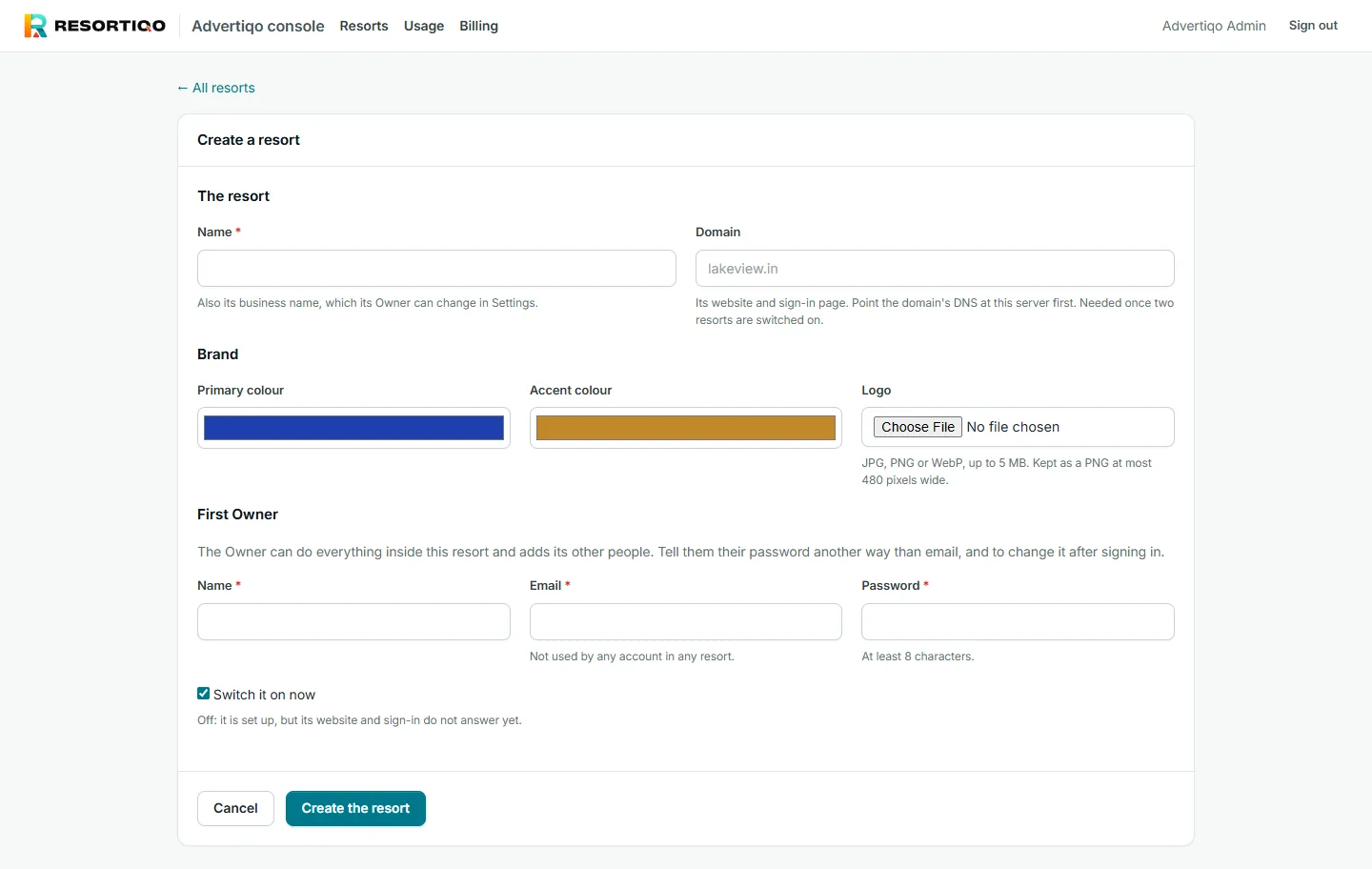
- Name This also becomes the resort's business name, which its Owner can change later.
- Domain The address of its website and sign-in. The domain must already point at our server before the resort is switched on.
- Brand Primary colour, accent colour and logo. These style the resort's website and sign-in page.
- First Owner Name, email and a starting password of at least 8 characters. The email must not be used by any account in any resort.
- Switch it on now, or leave it off Off means it is set up but its website and sign-in do not answer yet. Use this while preparing a resort before its go-live day.
- Press Create the resort.
Tell the Owner their starting password by phone or in person, not by email, and ask them to change it at once. From then on we do not know it and must never ask for it.
What the new resort starts with
A new resort is not empty. It gets the same starting set-up as a fresh installation:
- About 77 settings with sensible defaults
- Ten booking sources: Walk-in, Phone, Website, WhatsApp, Booking.com and so on
- Five money accounts for the Owner to rename or switch off
- Booking, invoice and receipt numbers starting at 00001
- Every module switched on
It has no rooms, no rates and no staff yet. Those are the setup work.
After creating it: the setup checklist
- Set its modules to match the plan it bought. See the next lesson.
- Set its plan, price and limits on its Billing page.
- Sign in as the Owner with them, or guide them, to add: properties and rooms, rates, GST details, money accounts, email settings, users.
- On Resort and Resort Pro, also load the restaurant menu, checklists, and (Pro) the staff list.
- Build the website and publish it.
- Check the scheduled job is running. My reports and Webhooks both say so plainly if it is not.
- Do a test booking from enquiry to invoice, then delete it.
Changing a resort later
Edit on the resorts screen changes the name, domain, logo and colours. Everything else about a resort is the resort's own to change in its Settings.
No second resort until host backups are recorded. See the console.
Two resorts can be on together only if each has its own domain. Otherwise an address could not tell which resort it belongs to. The live demo resort has no domain today and needs one before a second resort is switched on.
A resort cannot be deleted from the console. It can be switched off and exported.
Own domains are set up by hand in the hosting panel. Allow a day or two.