
Training / Advertiqo console / Lesson 4 of 4
Billing a resort
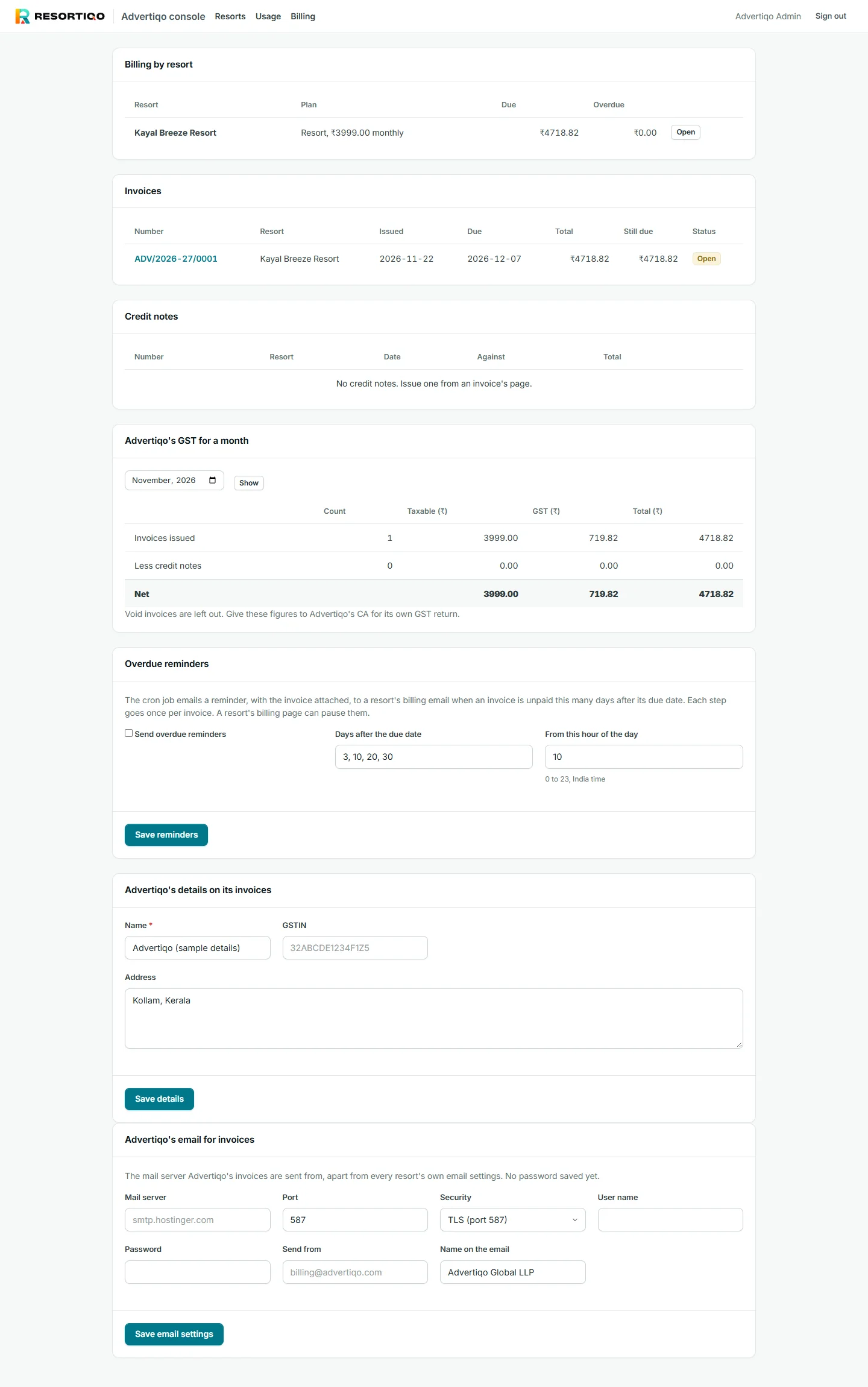
Each resort has a plan. From it the console raises our invoices, emails them, reminds resorts that are late, and shows what each one owes us.
- Modules
- M60 Advertiqo console
- Who uses it
- Advertiqo staff only
- Where
- /console › Billing
What it is for
This is Advertiqo's own billing, kept inside the console and never visible to a resort. It replaces a spreadsheet of who is on which plan and who has paid.
Set up once: Advertiqo's own details
On the console's Billing page, fill in:
- Advertiqo's name, GSTIN and address, which are printed on every invoice we send
- Advertiqo's email server, which our invoices are sent from. The password is stored encrypted and is never shown again
- Overdue reminders: on or off, how many days after the due date each goes (3, 10, 20 and 30 to start with), and the hour of day
Task 1: give a resort its plan

- Open the resort's Billing page.
- Enter the plan name and the price before GST For example, Resort, 3999.
- Choose how often it is billed Monthly, quarterly, half-yearly or yearly. For a yearly customer, type the yearly price (₹39,990 for Resort) with a yearly cycle.
- Set the GST rate (18%), the start date, and the email address invoices go to.
- Set the three limits and press Save plan.
Task 2: raise invoices
- By hand. Press Raise invoice with the boxes empty to bill the plan for its next period. Or type a description and amount for a one-time fee, such as setup or on-site training.
- Automatically. Tick Raise invoices automatically on the plan. From that day on, each new period's invoice is raised and emailed by itself, with the PDF attached.
Invoices are numbered in our own series for the Indian financial year, shared across all resorts: ADV/2026-27/0001, 0002 and so on. Each is due 15 days after issue unless you say otherwise.
Task 3: record payments
Resorts pay us by bank transfer or UPI. When money arrives, open the invoice and record the payment: amount, date, method and reference. A payment cannot be more than what is due. The invoice turns to Paid when it is fully covered, and the resort's dues go down.
Task 4: fix a wrong invoice
- No payment on it yet: void it, with a reason. It keeps its number.
- Already paid, in full or in part: issue a credit note from the invoice's page, for an amount or for everything that is left. Credit notes are numbered ADVCN/2026-27/0001 and reverse the GST at the invoice's rate.
Reminders
With overdue reminders on, a resort with an unpaid invoice gets an email with the invoice attached at each step you set. Each step goes once. A resort's billing page has a tick box to pause reminders for that resort, for example while a dispute is being sorted out.
Our own GST
The Billing page shows, for any month, the invoices we issued less the credit notes: taxable amount, GST and total. Give these figures to Advertiqo's own accountant for Advertiqo's GST return.
Resorts cannot pay us online. There is no payment link on our invoices. Payments are recorded by hand.
Free and discounted months are manual. For a pilot resort on three free months and then half price, do not raise invoices during the free months, then type the half price as the plan price.
Usage is not billed. SMS and WhatsApp use cannot be charged automatically; there is no meter for it.
Extra rooms are manual. Raise the room limit and the price yourself.
Our PDF shows GST as one figure, not split into CGST and SGST or IGST. Advertiqo's accountant should confirm what is needed.
Amounts here still show as ₹4718.82, not in the Indian style used on the resort screens.
Before the first real invoice: fill in Advertiqo's real GSTIN and address, confirm the 18% rate with our accountant, and set up the email server. The practice copy shows placeholder details.